Linux Guide Navigation List | Next: Getting Started! | Back to Start
Installing the new OS
This part is shockingly easy for the vast majority of distros!
Most Linux OSes use something called a LiveCD. This is a trial/sample/demo of the OS running off of the flash drive. This lets you check and make sure your hardware is playing nice with it. Depending on your hardware and the distro or desktop you choose, you can run into any number of odd issues. For instance, your wifi or audio may not work, your top row of media/screen brightness/media control keys may not work, or you may have odd graphical issues. Before you start the installer, test your audio and internet connection to see if things are working.
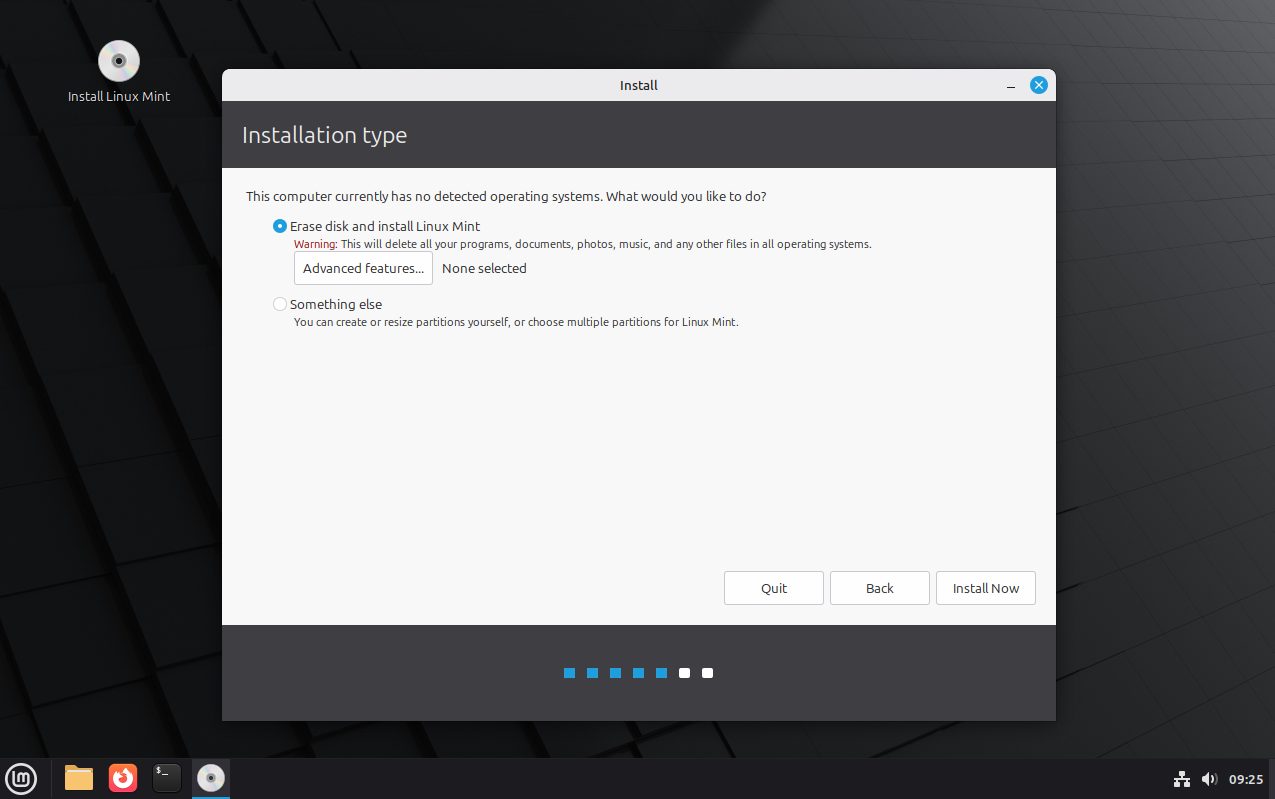
If everything looks good, look for an icon on the desktop to install the OS. The installer will give you step-by-step instructions, asking your language, keyboard layout, what hard drive you want to install to, and how you want it set up.
Many distros also give you the option to encrypt your drive with a tool called LUKS. This requires a password before accessing its contents. I recommend using encryption for any computer that regularly handles sensitive materials, or has anything on it that you don't want someone accessing if it's stolen from a bag or something. It's a layer of security that's worth the annoyance of needing to enter a password twice.
Once you get all those steps complete, the installer does the rest! Keep an eye on it while it runs. It should take between 5 and 15 minutes, depending on your hardware. I have one 2009-era netbook that takes over 20 minutes, so expect things to be slow if you have older and more limited hardware!
The installer will let you know when it's finished, and may ask you to restart. Fedora typically closes the installer and lets you mess around in the LiveCD environment. Go ahead and restart your system, and it should boot into your new OS!
Note: depending on how your UEFI/BIOS works, it may boot into the installer again after restarting. Some OSes tell you to unplug the USB at a safe point, while others don't. If it boots back into an installer, turn the computer off, unplug the USB, and turn it back on.