Key Concepts and Essentials (continued)
As you settle into your new Linux setup, you'll need to adapt to some new things. Linux is not Windows and things work a bit differently here. This section will explain a few key things that will look a little different to new users.
The Terminal
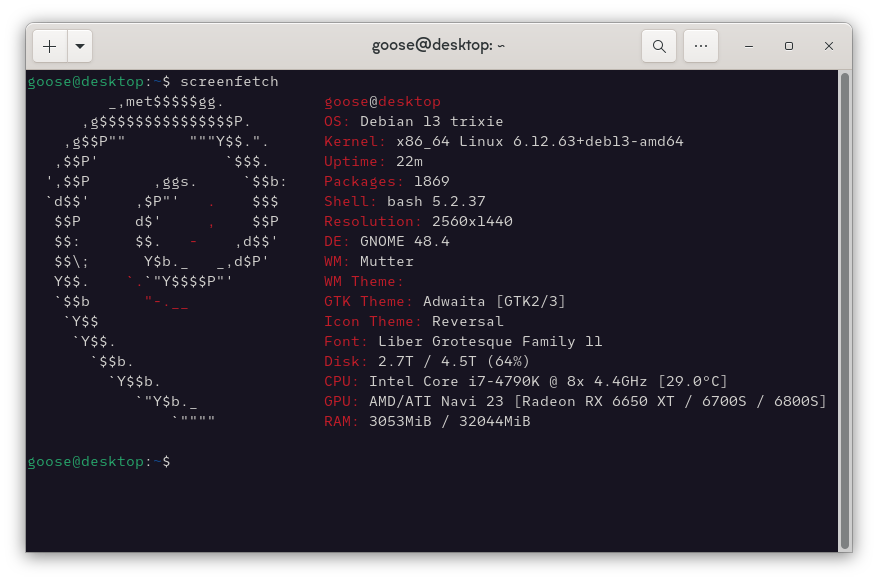
Of any single aspect of Linux, one of the most intimidating parts for your average computer user is the terminal. Something about the command line puts people on edge. It feels like one wrong letter or character could turn your OS inside out and delete all your stuff.
And don't get it twisted. You can get yourself into a pickle if you do something silly!
But, it doesn't have to be so scary! You really have to go out of your way to create that kind of problem. More often than not, people use it to install and remove programs, open and close some programs, run system updates, and manage their computers. There are typically tools for doing all this stuff without needing to use the command line, but knowing your way around it can still be very helpful.
This is because a lot of instructions online revolve around using the CLI (command line interface). The reason for this is simple: The people writing those guides have no idea what you're using! If you don't know what desktop someone is using, you can't take it for granted that they have any one specific graphical menu to do things. Regardless of how you set things up, every computer running your distro can accomplish the same tasks in the terminal. That makes it straight-forward to instruct people to install tools, change config files, or any number of other tasks.
Here are some examples of when it might come up:
NordVPN's installation instructions direct you to use a shell script that uses the tool "wget" to download the program from a web address, create a file system for it, and install the vpn's GUI tool. After running, it asks you to copy and paste a set of instructions to allow users to use the program.
Another thing I often do is install and remove a handful of specific things that I always add to my computers. Instead of needing to go through the software center, I can just use "sudo apt install program1 program2 program3 && sudo apt remove program1 program2" to have APT, the package manager, install 3 specific programs and remove two afterwards. This cuts down on the time needed to look for each thing and install/uninstall individually.
I also occassionally use a command line app called nano. It is a text editor that runs in your terminal, which is a quick and easy way to change config files in your system. For instance, on Xfce on Debian, it requires you to type your username by default on first login. You can change that through a config file, where you set it to list all the users instead. Nano is a quick way to scroll down the list of config options, turn a specific setting on, then save, exit, and restart to see if the new settings work.
All that to say, the terminal isn't always essential to use, but it comes up sometimes. While you can get into trouble using it recklessly, it can also be the fastest and most universal way of doing things. Don't let it intimidate you from trying new things! Use graphical tools to get yourself settled on your first Linux install, then take baby steps to use the terminal as you get comfortable.
Sudo
As you learn to use the terminal, the instruction "sudo" is bound to come up. Basically, sudo tells your computer this:

Sudo is a command that means "super user do ____." By invoking sudo, you identify yourself as an administrator, and direct your computer to carry out the rest of your instructions with admin privileges. Basically it's saying "I am the boss here, and you're gonna do as you're told."
This is often needed when making major system changes, like installing and uninstalling programs, altering config files for core parts of the system, or changing a user's password in the command line.
It's a powerful tool. It's also one that can get you into real trouble!
For example, one longrunning joke in Linux spaces is telling people to "uninstall the French Language pack" to free up system resources if your computer is slow. The command line instructions for this are as follows: "sudo rm -fr /*".
This technically removes anything that renders the French language on your system, because it irrecoverably deletes everything on your hard drive, including your OS, completely wiping your computer! Oops!
Basically, the instruction is saying the following: "I am a super user. Do this: remove everything from a specific location. When you do that, do it recursively and forcefully, don't let anything stop you. delete everything from "/", which is the very root of the drive." No system files, pictures, videos or documents will survive this.
One of the things Linux users are told is "always Sudo responsibly!", and when it goes wrong, people will jokingly say they "sudo'd too hard" or "sudo'd too close to the sun."
So, any time you are instructed to use that four-letter word to do something on your terminal, stop and think for a second. That password prompt will give you a chance to look over the instructions and make sure it's what you want to do. Look at each part and make sure you can picture what it's supposed to do. If something looks or sounds a bit sketchy, close your terminal, read the instructions closely, consider whether the source is trustworthy, and only execute those instructions once you feel like it's safe to do so.
Distro-Hopping
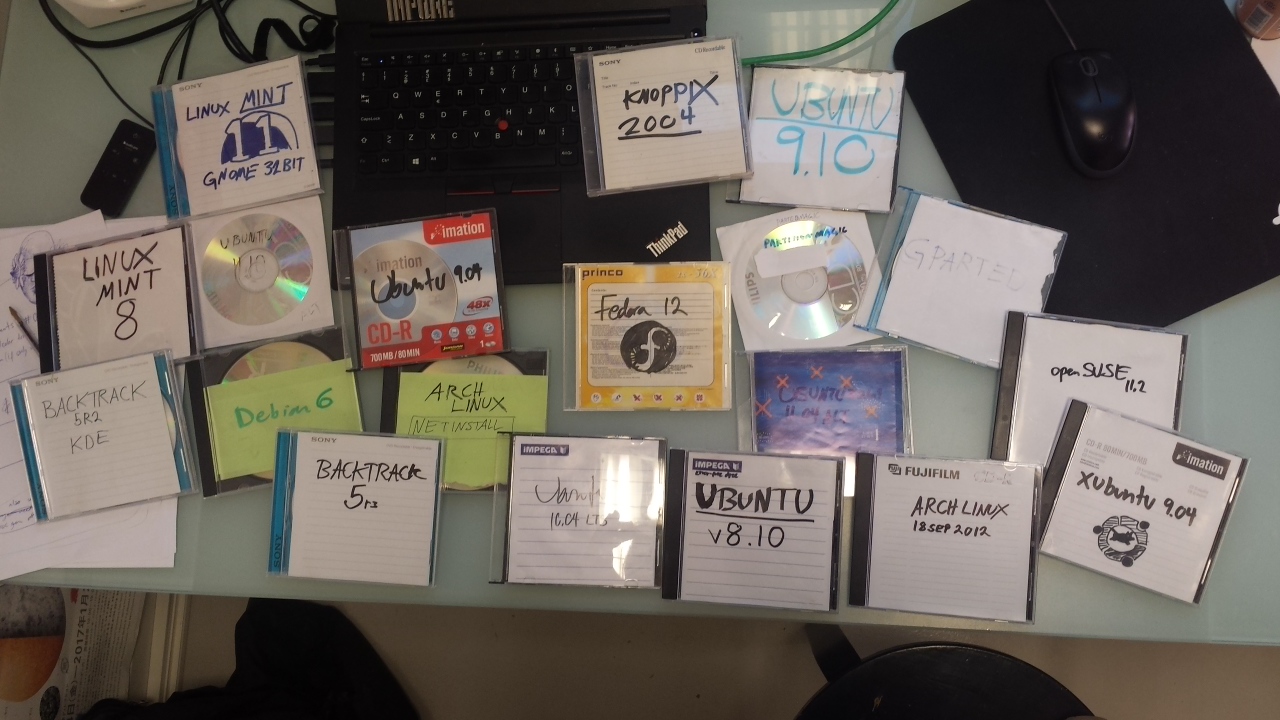
"I've used Linux since I was 12. This is what distro hopping looked like before USB sticks" ~Image courtesy of sirGentle on Reddit.
There comes a day in every budding Linux user's life when they decide to fly the coop. For one reason or another, you may feel led to greener pastures. Perhaps one distro has better support for a specific tool or program you use a lot. Maybe you have used a stable-release distro and wonder what it's like to live on the edge with a rolling release like Arch or OpenSUSE. You might be swayed by the latest release of an OS that you ordinarily wouldn't think of, and you want to see what all the fuss is about. Or, maybe, just maybe, you think the distro's mascot is cute.
Whatever the reason, many Linux users find themselves bouncing between OSes. This is a common enough occurance that it has a name: Distro-Hopping.
A little exploration is good and fine. I think it's a great way to learn the nuanced differences between different systems. Like I said early on, distros are all built from the same foundations, but made by and for different people with different goals, use cases, and sensibilities. They sometimes iterate on each other, and sometimes diverge wildly. Some are built by companies and are backed by a larger corporation, while others are plucky projects with a handful of volunteer maintainers. It's a diverse ecosystem worthy of getting to know better.
All that being said, it's not terribly fruitful for new users. Early on, you should focus on getting the basics and problem-solving to make your system "good enough" for a few months. Unless you run into some hardware incompatibility or use case-specific issues (like drawing tablets not working, or some other deal-breaking problem), try to find solutions within your distro first. That way, you have a point of reference to compare and contrast with other OSes.
However, if your needs are met just fine with what you use, feel free to stick to it! It's not a contest. Computers are tools meant to get stuff done, and if you found a way to get things done that works for you, there's no need to upend it!
Up Next: Gaming