Linux Guide Navigation List | Next: Key Concepts and Essentials (continued) | Back to Start
Key Concepts and Essentials
As you settle into your new Linux setup, you'll need to adapt to some new things. Linux is not Windows and things work a bit differently here. This section will explain a few key things that will look a little different to new users.
The File System
If you are accustomed to Windows, Linux's file system is going to look insane. You may ask yourself something like "What the heck is /var, /usr, /dev, and all this other stuff? Where's my Program Files?" but, as you will learn, Linux is organized differently!
Long story short, Linux's file system's origins go way back to UNIX, the computer system it was made to emulate. UNIX's whole thing was making everything modular and able to work in a wide range of contexts, and the file system is built to be flexible. Those files, instead of bundling specific programs together, are all split between specific functions. Not every distro adheres strictly to UNIX's old heirarchy, but this is usually the box-standard setup.
Rather than try to write out a whole list, I will let Veronica explain it better than I can. This helped me grasp what was going on with it.
Packages, Flatpaks, and Snaps
Another thing that'll feel unusual relates back to Linux's file system, and that's how software gets distributed. Windows software usually comes from a couple different sources: either from the Windows store, or from an .exe file that you download off the Internet. I'm sure some things get distributed by physcial media too, but I haven't installed a piece of software on a CD or DVD in at least a decade.
Linux, on the other hand, works more like your phone's app store. By picking a distro, you are also picking the collection of software made to work with it. Your distro's team tests and makes sure things work properly before adding them to the collection. This collection of software is called a repository, and a lot of your software will come from that. Your OS will use a tool called a package manager to handle these different files. Debian, Ubuntu, and the rest of their family tree use APT, Fedora and its ilk use DNF. They do the same basic things but require slightly different commands for certain tasks.
Depending on the distro, the repo's programs and utilities and drivers will be the latest versions, or it'll be older but tried-and-true ones. It all depends on their development speed and how conservatively they roll out changes.
If a program you need isn't in your repos though, you have other options! There are two different alternatives that you can add on top of your system repositories. These both offer containerized (or self-contained, with all the stuff they need to run independently of your system) apps that are meant to work across all distros. This allows you to install software that you otherwise wouldn't have access to, or lets you install a more up-to-date version if your distro is lagging behind.
The first system, Flatpak, is an open-source platform with a massive collection of software through its repository, called Flathub. Basically every Linux system I set up uses a handful of Flatpaks. One mainstay for me is LibreWolf, a privacy-focused community offshoot of Firefox. I also use it for the video game software Lutris and ProtonPlus, Spotify, and ONLYOFFICE, which is an open-source productivity suite with a similar look and feel to Microsoft Office. I also use it for Haruna, my all-time favorite media player. Some of this software is only available to me via Flatpak, or are on way older versions on Debian. With Flatpak, I can pick and choose things that need to be the latest-and-greatest!

The other system is Snap. It is very, very similar in implementation to Flatpak, but it its inner workings are closed and proprietary. It is a product from Canonical, the company the develops Ubuntu, and is something that they have integrated more and more into their OS over the last few years.

As such, Snaps are contentious among some Linux users. Some people distrust Canonical and feel like they are trying to become the Microsoft of the Linux world. Aside from the ideological and corporate qualms, Snaps are well-implemented and have become much more polished.
Regardless of which ones you use, pay attention to the information on your software management before using them. Flatpaks are sometimes unofficial, packaged by people other than the developers of the thing itself. That doesn't have to be a bad thing, but there is always a risk that someone can be doing something uncouth with it. Look into reviews and feedback if something is unofficial.
Debian-, Ubuntu-, and Fedora-based systems also have the option to download executable installers, but they should be a last resort. Debian and Ubuntu both handle .deb files, while they are called .rpm files on Fedora, and they provde information to your system about what extra things are needed to get that program to work. Sometimes, those programs can be out-of-date and ask for things that have been removed from your repositories, or they ask for things that will conflict with your current system and break things. Tread carefully. I use a .deb to install MEGA, a cloud storage program, as well as the video game storefont Steam. That's the only way I can access the official versions on Debian, so I make due with it.
Finally, there are things called AppImages. They are standalone self-contained programs with all their pre-requisites bundled with it. These can be useful in a pinch, and some people prefer them, but I generally avoid them in favor of ones found in repositories. I have no idea how updates would work on an AppImage, while Flatpaks and Snaps and system repos all give you a notification and update through your software or update center.
All this means is that you have a few options for where you can get the stuff you need. If one implementation doesn't work for you, you can try another. You also have access to a wider range of things if you need to use it. Your software manager will give you the option between snap, flatpak, or sytem repo version if you have them added, so you can test each one. It isn't ideal that these are split so many different ways, and it would be nice if one alternative stood alone, but it is what it is.
WINE and Windows Compatibility Layers/Emulation
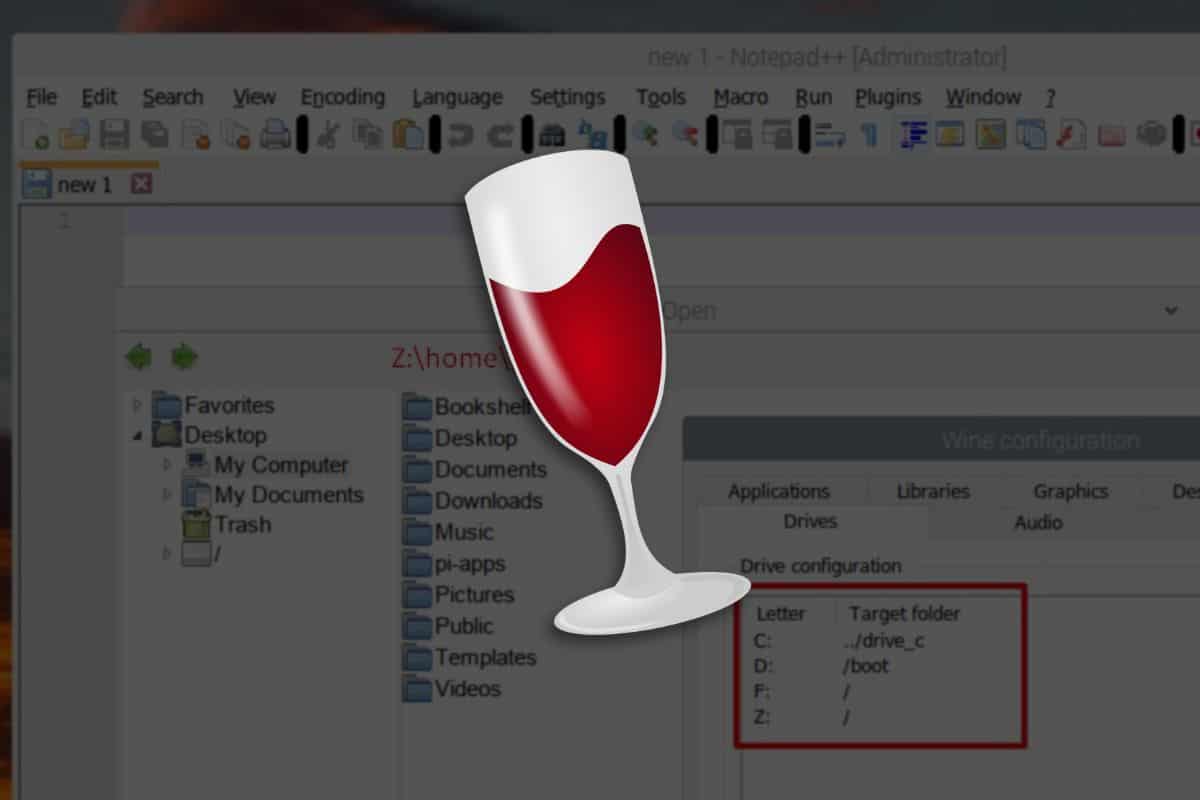
While you may be surprised just how many things are available on Linux, and how many of your needs it will meet, you may have specific software on Windows that you want or need to get working. It may be some creative software that you use for digital art, or productivity software like Notepad++, something you're accustomed to and rely on for work. Or, you have an old video game that you want to play, but it was made for Windows XP.
That's where WINE comes in! WINE stands for "Wine is Not an Emulator." Instead, it is a compatibility layer that converts windows instructions into linux ones. Instead of making your computer pretend to be something else, it's more like the computer equivalent to an english language dub on an anime, where it makes the Windows code comprehensible in the language your Linux computer speaks.
WINE is somewhat complicated and involved, and goes way above my head. I recommend checking out WineHQ, which explains how it works and how to use it, and also lists programs that they confirm can work on it.
If you are a gamer whose library is on Steam, Valve has built on the work the WINE team has done over the years to create Proton, a compatibilty tool specifically aimed at Windows computer games. Over the last 7 or 8 years, they have refined the tool to make over 90% of their storefront work to some degree or another. It's not a silver bullet; sometimes things are glitchy or don't work outright. However, it's remarkable how much they have done! Of my ~140 game library, only a dozen games failed on me.
Just like WINE, there is a website called ProtonDB, which allows you to search for a game and see if it's working on Proton. They have a rating system that correlates to the degree-of-difficulty in getting things working, and the degree to which things work as they should. With each game, user reports let you know how different folks with different distros and setups are getting the game running, or if they are running into problems. This is an invaluable tool for finding solutions for games that require some tweaking to get working.
There are also some game launchers that use WINE and/or Proton outside of Steam. Among them are Lutris, Heroic, and Faugus. These all make the process of getting software on WINE working easier, with graphical menus and other tools to streamline things. This can extend beyond video games too; when I tried to get Affinity, the creative suite by Canva, working, the folks getting it working on WINE recommended using Lutris as a path-of-least-resistance. That advice was well-founded, as everything worked great! I cover gaming at greater length later on.
If all else fails, you may need to install a virtual machine for some Windows stuff. Thankfully, Linux has some built-in tools for that, and programs like DistroBox also make that easy. I used a graphical tool called Virtual Machine Manager to get the vast majority of screenshots seen on this guide, for instance. I'd recommend keeping a Windows laptop or a separate Windows installation on an SSD for your desktop if you need to use it at times though, since getting graphics and USB drives and other things working in a virtual machine can be a real headache.